Search POA Landscape Meets MCP — What's New in v1.2026.4.15
Ten days ago I shipped Search by Principal — the long-overdue ability to find every shared record for a given user or team in one go. Today I’m shipping something that lets an AI agent run that same query, and several others, without you opening the plugin at all.
Search POA Landscape — the XrmToolBox plugin that queries the PrincipalObjectAccess (POA) table in Dataverse — has been around since 2017. Version 1.2026.4.15 is the biggest update in years. The headline isn’t a new search mode. It’s a new way to drive the existing ones.
The plugin now embeds an MCP server
When you start the plugin and connect to a Dataverse environment, an MCP server starts inside the same process. Single endpoint, http://localhost:5580/mcp, Streamable HTTP (the MCP spec released 2025-03-26). No extra runtime, no extra install, no separate window — start the plugin, the MCP server is there.
Why bolt MCP into a plugin instead of shipping a separate server? Because the plugin already has the Dataverse connection, the metadata cache, the query pipelines, the access-rights decoder, and the FetchXML builder. Re-implementing all of that in a standalone binary would just be reinventing what the plugin already does — redundant effort for no new capability. Wrapping it in MCP, on the other hand, is pure value-add: a thin new layer on top of an already working plugin, which itself sits on XrmToolBox’s plugin host, connection management, and Dataverse auth. Everything underneath is re-used as-is; only the MCP interface is new.
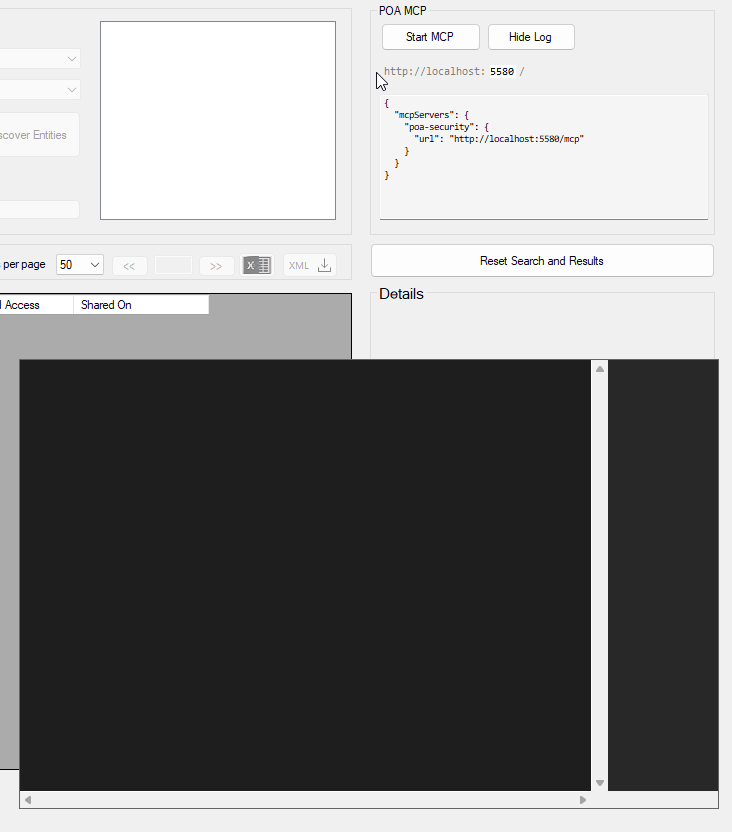
The panel also shows a copy-paste mcpServers config block right next to the Start button — the same shape most MCP clients accept. Click Start, copy the block, paste it into your MCP client’s config, and you’re done.
Nine POA tools, exposed to any compliant agent
The tools all sit in a search tier:
poa_list_shareable_entities— list every entity type that supports sharingpoa_search_entity_shares— search shared records of a given entity type, pagedpoa_search_principal_shares— search records shared with a specific user or team, pagedpoa_record_shares— get every principal with access to a specific record, with decoded rightspoa_discover_principal_entities— discover which entity types have shares for a principalpoa_resolve_principal— fuzzy-match a free-text user or team name (or email) to a Dataverse principal GUIDpoa_resolve_columns— fuzzy-match free-text column names to logical names (4-tier matching)poa_list_entity_columns— list every column of an entity (logical name, display name, type)poa_decode_access_mask— decode an access rights bitmask to its named flags
Every tool name carries the poa_ prefix so an agent loading several MCP servers can route unambiguously. Every description includes natural-language question hints (“Answers: …”) so the agent picks the right tool without you naming it explicitly.
The natural-language flow that emerges is: “What account records are shared with Test User 2?” → the agent calls poa_resolve_principal("Test User 2"), gets a GUID → calls poa_search_principal_shares(account, that GUID) → presents the table. No GUID knowledge required from you.
FetchXML download, and the MCP log overlay
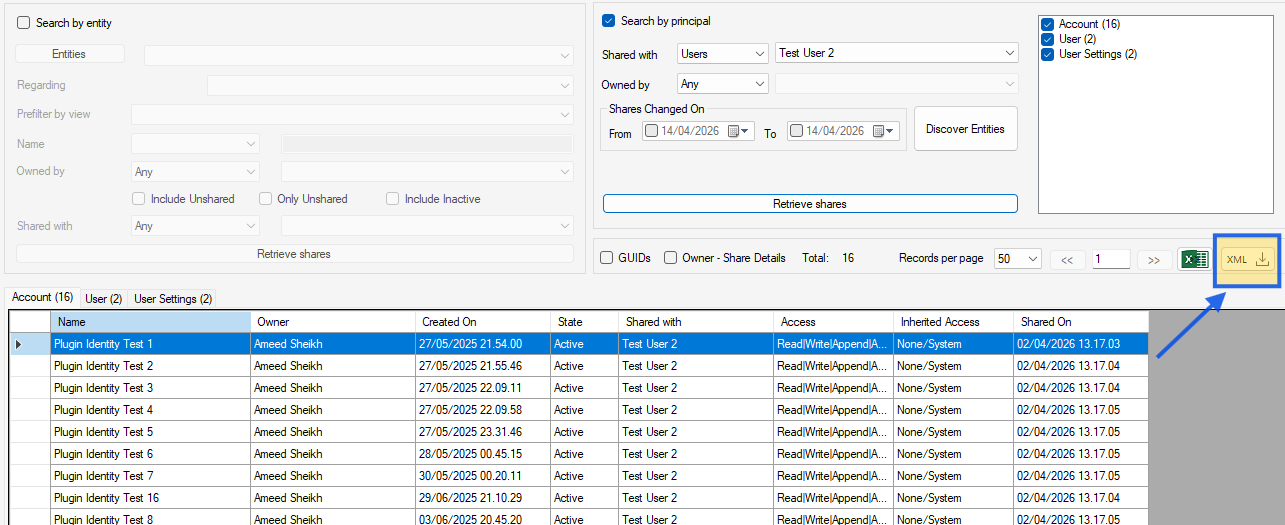
First, the simple version that doesn’t need an agent at all: every retrieval query the plugin runs from its main UI — whether you’re in Search by Entity mode or in a Search by Principal tab — can now be exported as FetchXML. There’s a new XML button next to the results toolbar; click it after running a search and the exact query that just executed is saved as a pretty-printed .xml file, with paging attributes stripped out so you can paste it straight into FetchXML Builder. Useful for debugging, for sharing queries with teammates, or just for keeping a record of what the plugin actually sent to Dataverse.
The same FetchXML capture pipeline is also wired into the MCP side. When the MCP server is running, a log overlay panel shows you what the agent is doing in real time — sessions, tool calls, argument summaries, result counts, timings. Toggleable, dark-console aesthetic, sits docked to the bottom-right of the plugin UI.
And every MCP tool call that builds a retrieval query gets its own per-call download button in the right-side strip of the log overlay. Click it and you get the exact FetchXML that specific call ran — same treatment as the main UI button, but scoped per agent call instead of per user click. Useful for debugging what the agent is doing or for learning what the tools build under the hood.
Search results with extra columns
Both poa_search_entity_shares and poa_search_principal_shares accept a columns parameter — a comma-separated list of logical names to include in the results alongside the standard fields (record name, owner, decoded access rights, changed-on date).
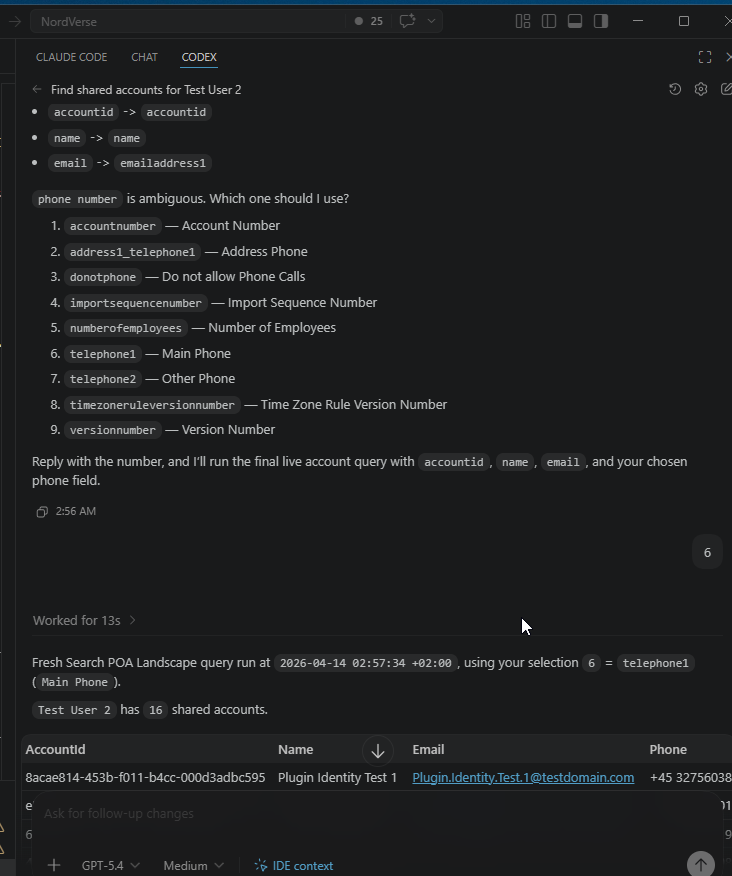
You don’t have to know the logical names. Ask the agent for “email and phone number” and it will call poa_resolve_columns first to translate. The resolver works in four tiers: exact logical name, exact display name, contains-substring, and word overlap. For inputs like name or email it resolves cleanly. For ambiguous inputs like phone number — which matches telephone1, telephone2, donotphone, and several others — it returns a list of candidates and tells the agent to ask you which one to use.
A safer way to handle ambiguity
That last point is more important than it sounds. The first time I tested the resolver with phone number, the agent looked at the candidates and silently picked telephone1 because it looked obviously right. It was right, that time. But the next ambiguous input might not be — and for a security-audit tool, the LLM “looking like it picked correctly” is not the same thing as the LLM picking correctly.
The fix landed server-side, not in any single agent client. Three layers:
- The MCP server’s
instructionsfield (returned atinitialize) carries a sentence telling the agent that ambiguous candidates are returned by design and must be presented to the user. - The
poa_resolve_columnstool description repeats the rule. - The
Hintfield on the tool response, when there are unresolved entries, explicitly says “PRESENT THE CANDIDATES TO THE USER … do NOT pick on the user’s behalf even if one candidate looks obviously best.”
The lesson I’d draw: rules belong server-side, where they propagate to every client automatically. Encoding “ASK don’t guess” in any single agent’s memory only protects you when that agent is the one doing the asking. Encoding it in the MCP server protects you across every compliant client.
A note on running across different agents
I tested v1.2026.4.15 across Claude Code, Codex, and GitHub Copilot for VS Code. All three discovered the tools and routed natural-language queries to them with no client-specific configuration on my side. There are surely other MCP servers out there doing portable cross-client work — I’d love to see more of them. For this project, the milestone is that the same server, with no per-client code, works across several independent agent hosts. If you’re running Cline, Continue.dev, or another MCP-compliant client, the same endpoint should work for you too — let me know how it goes.
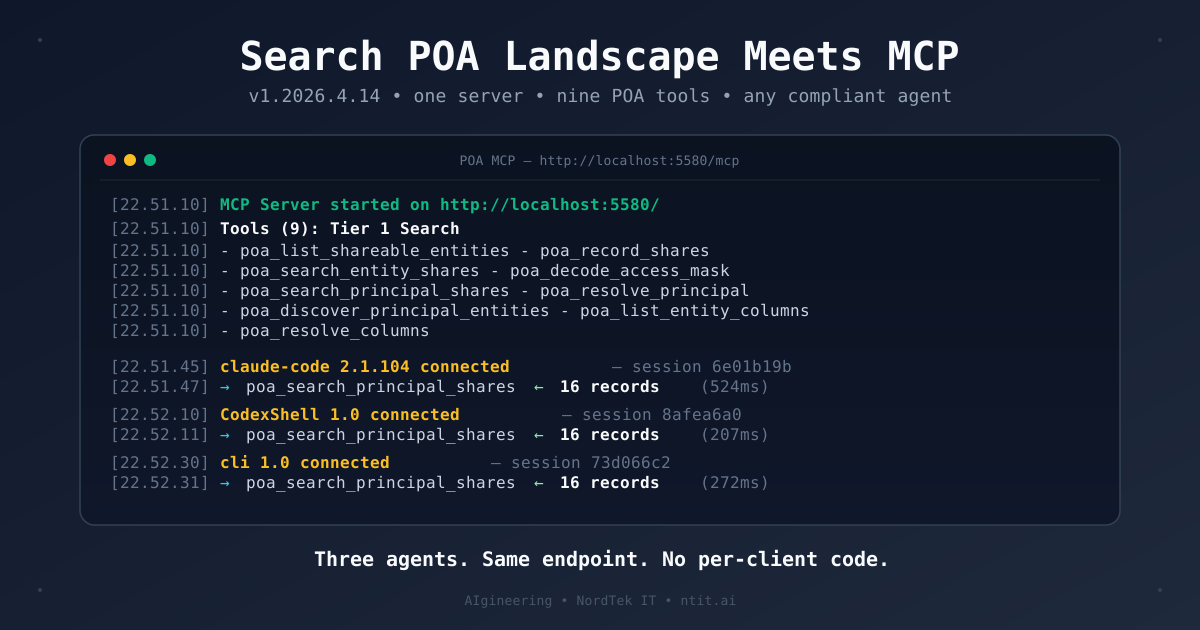
v1.2026.4.15 also reads the clientInfo object from the MCP initialize handshake and logs each client’s name and version on connect — so you can see exactly which agent is calling in at any moment. In the clip above: claude-code 2.1.104, CodexShell 1.0, and cli 1.0 (that last one is GitHub Copilot for VS Code).
One quirk worth knowing: different clients have different ideas about session lifecycle. Claude Code reuses one MCP session for an entire conversation. Codex opens a new session for nearly every tool call — you’ll see its CodexShell 1.0 connected line appear multiple times in a row in the clip above. Both are spec-compliant, but a server has to be ready for both shapes.
What’s coming next
A few items are designed and queued for the next round:
- Conditional filters on
poa_search_entity_sharesandpoa_search_principal_shares— operator vocabulary covers the usual suspects (equals,not_equals,contains,not_contains,starts_with,greater_than,less_than,in,is_null, and a few others), letting you say things like “shared accounts where name does not contain ‘test’” or “shared opportunities where revenue is greater than 100k” without paging through every record. - Inverse search — a
poa_search_records_not_shared_withtool for finding records that are NOT shared with a specific principal. A long-standing request from the WordPress comments going back to 2019. - Bulk record shares —
poa_record_sharesextended to accept an array of record GUIDs in a single call, instead of one-at-a-time. - One-click FetchXML handoff to FetchXML Builder — replace the current
.xmlfile save with the XrmToolBox plugin messaging API, so a single button opens the FetchXML directly inside FXB without going through disk.
No dates committed — these land when they’re tested and ready.
Try it
v1.2026.4.15 lands on nuget.org alongside this post. Once it’s listed:
- Install via the XrmToolBox Plugin Store — search for
POA(or the full titleSearch data in PrincipalObjectAccess). - Connect to a Dataverse environment and click Start on the MCP server panel.
A note on ports. The panel defaults to
5580but the port field is editable (valid range1000–9999). If that port is already in use on your machine, or if your local security policies prevent you from binding an HTTP listener there, pick a different one before you click Start. The JSON snippet updates automatically to whatever port you choose, so whatever you paste into your MCP client will always match what’s actually running. If Start fails, that’s usually the reason — free up the port or pick another one and try again.
- Copy the JSON block the panel shows. It looks like this:
{
  "mcpServers": {
    "poa-security": {
      "type": "http",
      "url": "http://localhost:5580/mcp"
    }
  }
}- Paste it into your MCP client’s config. Exactly where varies per client — check your client’s own docs for the location. If your client is MCP-compliant the field names
mcpServers→{serverName}→url(or some close variant) should just work.
Then ask the agent in plain English: “what account records are shared with Test User 2?”, “show me all records shared with the Sales team”, “who has access to record X?”. No GUIDs, no FetchXML, no knowledge of the POA table required.
You can also flip it around and ask about an entity type instead of a specific user or team. These prompts land the agent in poa_search_entity_shares:
“show me all shared accounts”
“list every shared opportunity with its owner and email”
“which accounts have been shared in the last 30 days?”
“show me shared contacts with their phone numbers”
The last one will trigger the poa_resolve_columns disambiguation on phone number — the agent will come back and ask you which phone column to use before running the search.
If you try it from a client I haven’t tested, let me know how it goes — and especially what clientInfo.name your client sends. Going by the three I’ve seen so far, the answer is anyone’s guess.
#PowerPlatform #Dataverse #XrmToolBox #MCP #AIgineering #NordTekIT